 Favorites
Open Favorites →
Favorites
Open Favorites →
A fast, private home for the sites you actually use. No account, no login, nothing to sign up for — bookmark one link and your page follows you across every device.
Start with popular sites Free · no sign-up · works on every device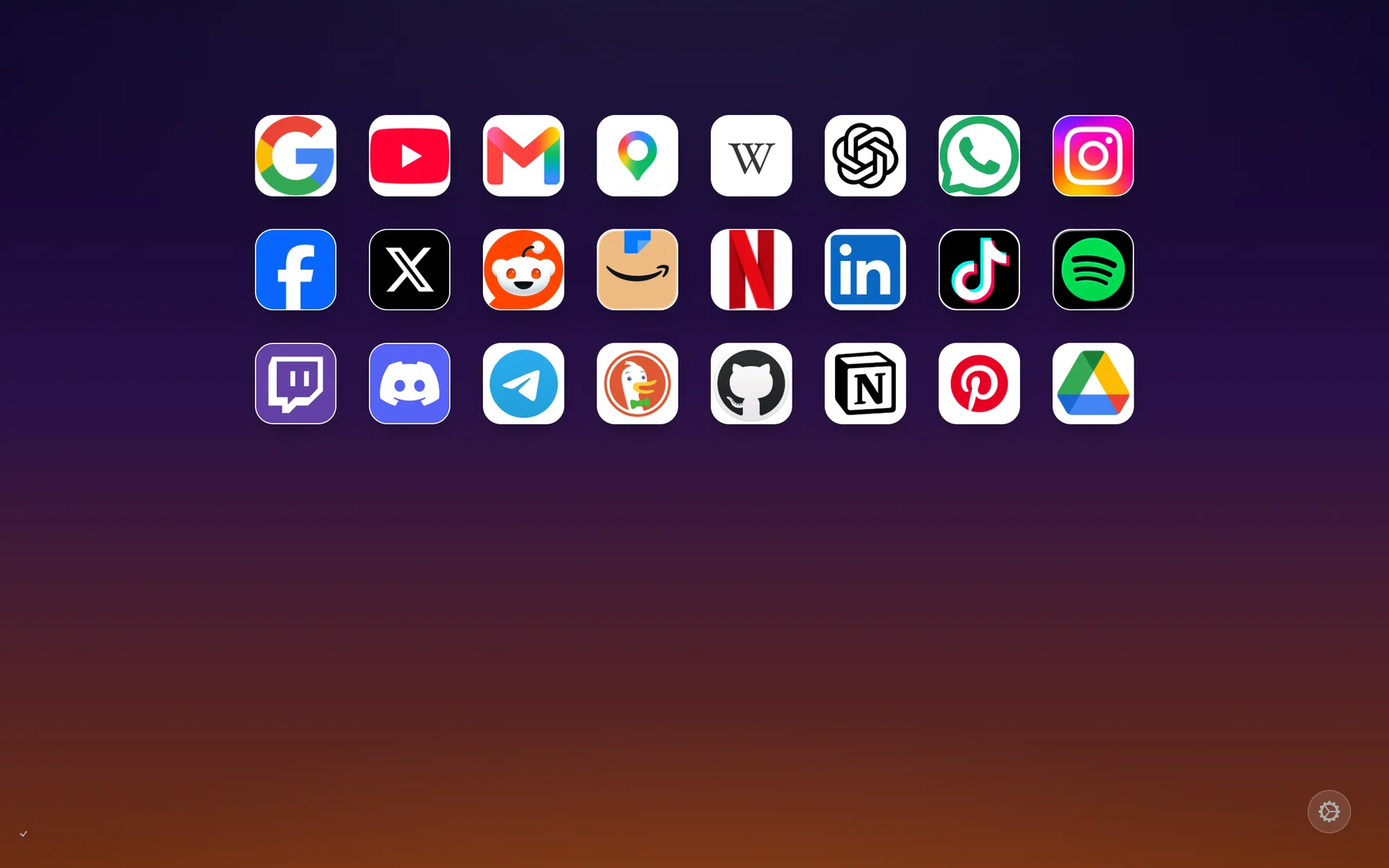
There's no account and no password. The URL is your page — so "sync" is just opening the same link somewhere else.
Drop in the sites you open every day. Icons are fetched automatically and laid out like an app grid.
You get one URL that holds your whole page. Save it — that's the only thing to remember.
Paste the link on your phone, laptop, or a new browser and your grid is right there. No login step.
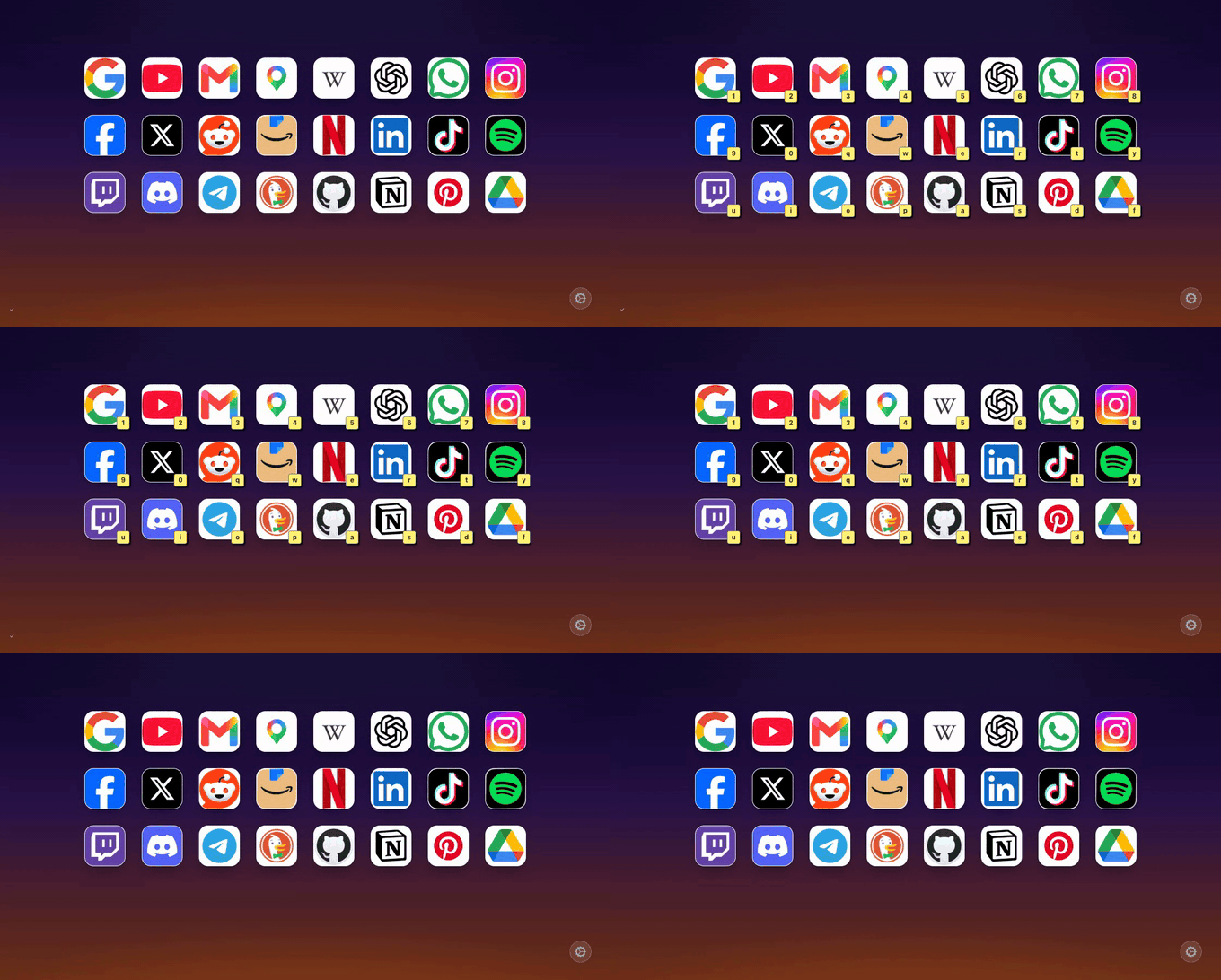
Press ? to reveal a shortcut on every tile, then hit the key and your site opens instantly — a start page you can drive without the mouse.
No account means nothing to breach and nothing to sell. No trackers, no ads, no cookies trailing you around the web — just your sites.
No. Your page lives at a URL. Bookmark it and you're done — there's nothing to sign up for and no password to forget.
Open the same link on another device. Because the URL is your page, "syncing" is just visiting it — no login, no setup.
Yes. There's no account, no tracking, and no ads. Anyone who has your link can edit the page, so treat the link like a house key.
It's free.
Install the Favorites extension and each new tab opens straight to your grid — and your link is stored durably, so clearing browser data can't lose it. No account, no new permissions at install.
Free on the Chrome Web Store, Firefox Add-ons and the App Store (Mac, iPhone and iPad)No extension? Most desktop browsers can open your link on every new tab: set it as your homepage and turn on "new tabs open the homepage" in your browser's settings — see Safari for the exact steps there.
On Mac, iPhone and iPad, Favorites is a free app on the App Store — it carries the Safari extension, so every new tab opens your grid.
Install Favorites from the App Store (free, macOS 11+), open it once, then in Safari → Settings → Extensions turn on Favorites and allow it on favorites.website. Finally, in Settings → General set New windows open with and New tabs open with to Favorites — Safari tracks the two separately, so both matter.
Safari takes any page as its start page. Open your grid, Settings → copy your link, then Safari → Settings → General: paste it into Homepage and set New windows open with and New tabs open with to Homepage.
Install Favorites from the App Store (free, iOS 15.4+) and open it once. Then in Settings → Apps → Safari → Extensions → Favorites turn on Allow Extension and allow it on favorites.website. On that same screen, Open New Tabs now appears: set it to Favorites — start page. Without the app, add your grid to the Home Screen instead (see below).
A few browsers keep their own new tab even with the extension installed. One setting fixes most of them.
Zen opens its floating URL bar on ⌘T instead of a new tab,
so no extension's new-tab page is ever shown. Type
about:config in the address bar, accept the warning, search
for zen.urlbar.replace-newtab and double-click it to
set it to false. ⌘T now opens your grid; the address
bar is still a ⌘L away.
Arc has no new-tab page for an extension to replace: ⌘T opens its command bar. What works instead: open your grid and pin it with ⌘D, then drag it to the top of your pinned tabs. ⌘1 now jumps straight to it from anywhere. Open sites from it with ⌘-click, so the pinned tab stays your grid. To put it on ⌘T itself, try Arc's Settings → Shortcuts: move New tab to another key, then give ⌘T to Go directly to tab 1.
Firefox asks once whether to keep an extension's new tab. If it was turned back, go to Settings → Home and set New tabs to Favorites — start page.
Only one extension can own the new tab. If Chrome asked "Change back to Google?" and you said yes, or another new-tab extension came later, turn that one off on the Extensions page and reinstall Favorites.
Add your page to the home screen and it opens like an app — one tap, works offline. Your grid's Settings shows a QR code, so getting your link onto your phone is just a scan.
Open your link in Safari, tap Share, then Add to Home Screen.
Open your link in Chrome and tap Add to home screen from your grid's Settings (or from Chrome's ⋮ menu). Chrome can also open your link from its Home button: Settings → Homepage.
Both support a homepage URL — set your link as the homepage and the Home button brings your grid up anywhere.